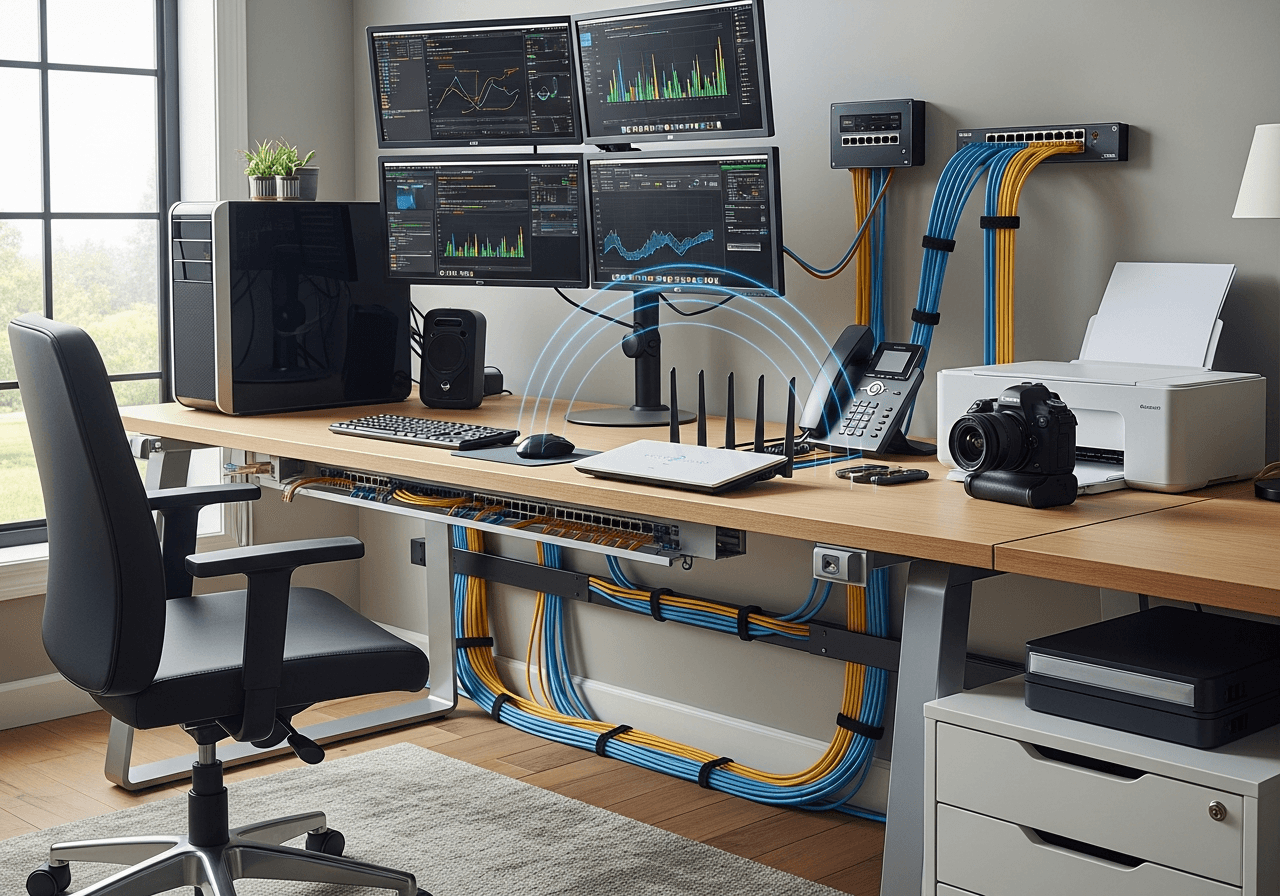
Remote work isn't going anywhere. Across Melbourne's western suburbs — from Point Cook to Werribee, Tarneit to Hoppers Crossing — we're seeing more homeowners than ever converting spare bedrooms, garages, and granny flats into permanent home offices.
But here's what most people don't think about: your home's electrical system wasn't designed for a full-time office. Running a computer, two monitors, a printer, phone charger, desk lamp, heater, and a router off a single double power point that shares a circuit with the bedroom isn't just inconvenient — it's a genuine fire and safety risk.
At Power Amp Electrical, we've fitted out hundreds of home offices across Western Melbourne and Geelong. This guide covers everything you need to get your electrical right — whether you're setting up a basic desk space or a full professional studio.
Why Home Office Electrical Matters
The Problem with "Good Enough"
Most people start working from home with whatever's available: a power board plugged into the nearest outlet, an extension lead snaking across the floor, and the WiFi router two rooms away. It works — sort of — until it doesn't.
Common problems we see:
- Tripping circuits: Running a heater, monitor, and computer on the same circuit overloads it
- Slow or unreliable internet: WiFi through multiple walls drops signal strength dramatically
- Poor lighting: Overhead room lights create glare, shadows, and unflattering video call appearances
- Flickering monitors: Voltage fluctuations from shared circuits cause screen flicker
- Fire hazards: Daisy-chained power boards and overloaded outlets
- No surge protection: A single power surge can destroy thousands of dollars of equipment
The Real Cost of Getting It Wrong
Consider what's at stake:
- Equipment damage: A power surge or overloaded circuit can fry your computer, monitors, and peripherals
- Data loss: Unexpected power drops can corrupt files and damage storage drives
- Lost productivity: Internet dropouts, tripping circuits, and poor lighting cost hours per week
- Safety: Overloaded circuits and makeshift wiring create genuine fire risks
- Health: Poor lighting causes eye strain, headaches, and fatigue
Getting your home office electrical right isn't a luxury — it's an investment in your productivity, safety, and equipment.
Dedicated Circuits: The Foundation
What Is a Dedicated Circuit?
A dedicated circuit is a separate electrical circuit that runs from your switchboard to a specific area or appliance. It has its own circuit breaker and doesn't share capacity with anything else in the house.
Why Your Home Office Needs One
Your home's existing circuits were designed for bedrooms and living areas — light loads like a lamp, phone charger, and maybe a TV. A home office draws significantly more power:
| Equipment | Typical Power Draw |
|---|---|
| Desktop computer | 200–500W |
| Laptop (charging) | 45–100W |
| Monitor (each) | 30–80W |
| Laser printer | 500–1,200W (when printing) |
| Desk lamp | 10–20W (LED) |
| Phone/tablet charger | 10–30W |
| External hard drives/NAS | 20–100W |
| Electric heater (if used) | 1,000–2,400W |
| Total (without heater) | 345–1,930W |
| Total (with heater) | 1,345–4,330W |
A standard 10A circuit in an Australian home provides approximately 2,400W. If your home office shares a circuit with a bedroom that also has a TV, clock radio, and phone charger — and someone turns on a heater — you'll trip the breaker.
What We Recommend
For a typical home office, we recommend:
- One dedicated 15A circuit for computer equipment and peripherals
- One dedicated 15A circuit for heating/cooling if you use a portable heater or separate air conditioning unit
- A separate circuit for lighting (often shared with the room's existing lighting circuit, but sometimes dedicated for dimmer/smart lighting setups)
For power-intensive setups (multiple monitors, servers, 3D printers, studio equipment), a 20A circuit or multiple dedicated circuits may be necessary.
Power Point Placement: Think Like a Professional
The number one mistake people make with home office power points is putting them in the wrong place — behind furniture where you can't reach them, too few for your equipment, or too far from where you actually sit.
Desk-Level Power Points
Standard power points are installed at skirting board level (300mm from the floor). For a home office, we strongly recommend desk-level power points at approximately 1,000mm from the floor.
Benefits:
- Easy access without crawling under desks
- Visible — you can see what's plugged in and if anything looks wrong
- No need for cables running up from floor level
- Cleaner cable management
- Easy to unplug and replug devices
How Many Power Points?
| Setup | Minimum Power Points |
|---|---|
| Basic (laptop + monitor) | 2 double outlets |
| Standard (desktop + 2 monitors + printer) | 3 double outlets |
| Professional (multiple monitors + peripherals + studio gear) | 4–6 double outlets |
Pro tip: Install at least one more double outlet than you think you need. You'll thank yourself when you add a second monitor, a desk fan, or a new gadget. It's far cheaper to install extra during initial work than to call us back later.
USB Power Points
Modern USB-integrated power points are a game-changer for home offices. Instead of wasting an outlet on a phone charger, you get USB-A and USB-C charging built into the power point.
We recommend at least one USB power point at desk level for charging phones, tablets, headphones, and other devices.
Floor Outlets
If your desk is positioned in the middle of the room (not against a wall), a floor outlet can be the cleanest solution. These sit flush with the floor and provide power exactly where your desk is, eliminating cables running across the floor — a trip hazard and a safety concern.
Data Cabling vs WiFi: What's Best for Home Offices?
This is one of the most common questions we get, and the answer is clear: hardwired internet is better for remote work in almost every way.
The WiFi Problem
WiFi is convenient, but it has real limitations for professional use:
- Signal degradation: Every wall between your router and your office reduces signal strength
- Interference: Neighbours' networks, Bluetooth devices, microwaves, and baby monitors all create interference
- Shared bandwidth: Every device on your WiFi (phones, tablets, smart TVs, kids' devices) competes for bandwidth
- Latency: WiFi adds latency that you notice on video calls and file transfers
- Dropouts: WiFi connections drop out more frequently than wired connections
For a spare bedroom down the hallway from the router, WiFi might deliver 30–50% of your actual internet speed. For a garage conversion or granny flat, it could be worse.
Hardwired Ethernet: The Professional Choice
A Cat6 or Cat6a Ethernet cable run from your router to your home office provides:
- Full speed: 100% of your internet plan speed, consistently
- Low latency: Critical for video conferencing, VoIP calls, and cloud applications
- Rock-solid reliability: No dropouts, no interference
- Dedicated bandwidth: Not shared with other WiFi devices
- Future-proof: Cat6a supports up to 10Gbps — more than enough for years to come
Data Cable Installation
We run data cables through your roof space or wall cavities, terminating them neatly with wall plates at both ends. It's clean, hidden, and permanent.
| Service | Typical Cost |
|---|---|
| Single data point (within same floor) | $200–350 |
| Single data point (between floors) | $300–500 |
| Multiple data points (2–4) | $150–300 per point |
| Data point to detached building (garage, granny flat) | $500–1,000+ |
When WiFi Makes Sense
WiFi isn't always wrong. It's fine for:
- Casual or part-time work from home
- Basic email and web browsing
- If your router is in the same room or adjacent room
- If you use a WiFi 6/6E mesh system with good coverage
But if you're on video calls for hours, transferring large files, or your livelihood depends on a reliable connection — go hardwired.
What About Starlink?
For homes in Melbourne's outer west where NBN speeds are poor, Starlink can be a viable alternative. We install Starlink dishes and can run Ethernet from the Starlink router to your home office for the best possible connection.
Lighting for Home Offices (and Video Calls)
Lighting is often the most overlooked aspect of a home office setup. Bad lighting isn't just unflattering on video calls — it causes eye strain, headaches, and fatigue that kills your productivity.
The Problem with Standard Room Lighting
Most bedrooms have a single ceiling light — a downlight or pendant — positioned in the centre of the room. This creates problems for office use:
- Glare on screens: Overhead light reflects off monitors
- Harsh shadows: A single overhead source casts shadows across your desk and face
- Wrong colour temperature: Warm bedroom lighting isn't ideal for focused work
- No control: A single switch gives you on or off, nothing in between
Ideal Home Office Lighting Layout
A professional home office should have three layers of lighting:
1. Ambient (General) Lighting
- Recessed LED downlights or a modern panel light
- Warm white to neutral white (3000K–4000K)
- Dimmable for different times of day
- Positioned to avoid direct glare on screens
2. Task Lighting
- Dedicated desk lamp with adjustable arm
- Neutral to cool white (4000K–5000K) for focus
- Positioned to the side, not directly overhead
- Helps reduce eye strain during detailed work
3. Video Call Lighting
- Soft, even light on your face (not behind you)
- Ideally positioned in front of and slightly above your webcam
- A dedicated lighting circuit allows separate control
- Ring lights or panel lights work well, but properly positioned downlights can achieve similar results
Colour Temperature Matters
| Colour Temperature | Feel | Best For |
|---|---|---|
| 2700K (warm white) | Cosy, relaxing | Bedrooms, evening |
| 3000K (warm neutral) | Comfortable | General living |
| 4000K (neutral white) | Alert, clean | Home offices, task work |
| 5000K (cool white) | Clinical, energising | Detailed work, studios |
For most home offices, 4000K strikes the best balance between alertness and comfort.
Smart Lighting for Home Offices
Consider smart lighting controls that let you:
- Adjust brightness throughout the day (brighter in the morning, softer in the afternoon)
- Change colour temperature to match natural light
- Create "meeting mode" scenes that optimise lighting for video calls
- Schedule lights to turn on before your workday starts
Read more about smart lighting: Smart Lighting: Is It Worth It?
Ergonomic Electrical Layout
How you arrange your electrical setup affects your daily comfort and long-term health. Here are the principles we follow when fitting out home offices.
Cable Management
Messy cables aren't just ugly — they're a safety and maintenance issue.
- Desk grommets: Holes in the desk with tidy covers for cables to pass through
- Cable trays: Mounted under the desk to hold power boards and excess cable length off the floor
- Conduit: For exposed runs (especially in garage conversions), conduit keeps cables tidy and protected
- Wall-mounted cables: Proper clips and channels keep cables neat along walls
Power Point Heights
| Location | Height | Purpose |
|---|---|---|
| Standard (skirting level) | 300mm | General use, printers on floor |
| Desk level | 1,000mm | Computer, monitors, desk accessories |
| Above desk (optional) | 1,200mm | Wall-mounted monitors, webcam power |
Switching and Control
- Dedicated switches: Your home office lighting should have its own switch, separate from the room's general lighting
- Dimmers: Essential for controlling light levels during video calls and throughout the day
- Smart switches: Allow scene control and scheduling without smart bulbs
Safety Considerations
Working from home introduces electrical loads that residential circuits weren't originally designed for. Here's how to keep your setup safe.
Overloading Risks
The most common safety issue we see in home offices is overloaded circuits. Warning signs include:
- Circuit breakers tripping regularly
- Power points or plugs that feel warm or hot
- Discolouration around power points
- A faint burning smell
- Flickering lights when equipment starts up
If you notice any of these, stop using the affected circuit and call a licensed electrician. Read more about electrical safety in the home.
Surge Protection
Your home office equipment is vulnerable to power surges — and a surge can destroy thousands of dollars' worth of gear in an instant.
At a minimum, use a quality surge-protecting powerboard for your computer equipment. For proper protection, consider a whole-home surge protection device installed at your switchboard.
RCD Protection
Ensure your home office circuit is protected by a safety switch (RCD). Test it monthly by pressing the test button on your switchboard. If it doesn't trip, call us immediately.
Extension Leads and Power Boards
- Never daisy-chain power boards (plugging one into another)
- Don't run extension leads under rugs or through doorways permanently
- Replace damaged leads immediately — frayed or cracked insulation is a fire risk
- Use power boards rated for the load — check the maximum wattage rating
The best solution? Install enough permanent power points that you don't need power boards at all.
Garage and Granny Flat Conversions
Many Melbourne homeowners are converting garages, sheds, or granny flats into dedicated home offices. These spaces often need significant electrical work.
Common Requirements
- New sub-board or circuits run from the main switchboard
- Adequate power points (at least 4–6 doubles for a full office)
- Data cabling from the main house
- Dedicated lighting — garages typically have a single fluorescent tube, which isn't suitable for office work
- Heating and cooling circuit — garages aren't insulated, so you'll need air conditioning or a heater on a dedicated circuit
- Ventilation — proper exhaust fan or ventilation if the space is enclosed
- Safety switches and smoke alarms — required for habitable spaces. See our guide on smoke alarm requirements
Insulation and Electrical
If you're insulating a garage conversion (which you should), the electrical work needs to be done in coordination. We often work with builders and insulation installers to ensure power points, data cables, and lighting are run through walls before they're lined.
Council Considerations
If you're converting a garage into a habitable space, check with your local council about building permits. The electrical work itself doesn't require council approval, but the overall conversion might. Safety inspections may be required as part of the process.
Home Office Electrical Checklist
Here's a summary of what we recommend for a professional home office setup:
Essential
- Dedicated circuit for computer equipment
- Minimum 3 double power points at desk level
- At least 1 USB-integrated power point
- Hardwired Ethernet data point
- Dimmable LED lighting (4000K colour temperature)
- RCD protection on all circuits
- Quality surge protection
Recommended
- Separate circuit for heating/cooling
- Smart lighting control
- Second data point (for printer or second desk)
- Video call lighting (front-facing)
- Cable management system
- UPS (uninterruptible power supply) for computer
Premium
- Multiple dedicated circuits for heavy equipment
- Automated lighting scenes (work, meeting, break)
- Floor outlets for mid-room desk placement
- Starlink installation (poor NBN areas)
- Whole-home surge protection
- Integrated AV setup for video conferencing
How Much Does a Home Office Electrical Fit-Out Cost?
| Service | Typical Cost |
|---|---|
| Dedicated circuit (from switchboard to office) | $350–600 |
| Additional double power point | $180–280 each |
| USB-integrated power point | $220–350 each |
| Data point (Cat6 Ethernet) | $200–500 each |
| LED downlight installation (per light) | $80–150 |
| Dimmer switch installation | $120–200 |
| Full home office fit-out (circuit + 4 power points + data + lighting) | $1,500–3,000 |
| Garage conversion electrical (full) | $3,000–6,000+ |
Costs vary based on cable run distances, switchboard capacity, and scope of work.
Frequently Asked Questions
Do I really need a dedicated circuit for my home office?
If you're working from home full-time with a computer, monitor, and other peripherals, yes — we strongly recommend it. Sharing a bedroom circuit means your work equipment competes with everything else on that circuit, and a tripping breaker mid-video call is not a good look. A dedicated circuit costs $350–600 and gives you reliable, safe power for your workspace.
Is Ethernet really that much better than WiFi for working from home?
For daily work, absolutely. A hardwired connection gives you full speed, zero dropouts, and much lower latency — all of which matter for video calls, file uploads, and cloud-based work. We've had clients in Tarneit and Williams Landing go from constant video call freezing to flawless connections simply by running a single Cat6 cable from their router to their office.
Can I run a data cable to my garage or granny flat?
Yes. We can run data cables underground in conduit or aerially between buildings. The cost depends on the distance and route, but it's typically $500–1,000 for a detached building. It's a far more reliable solution than trying to push WiFi signal to a separate structure.
What lighting is best for video calls?
The key is having soft, even light on your face, positioned in front of you and slightly above webcam height. Avoid having a window or bright light behind you — it silhouettes your face. A dedicated LED panel or properly positioned downlights set to 4000K give the most natural, professional look. We can design a lighting layout specifically for video conferencing as part of your office fit-out.
How long does a home office electrical fit-out take?
A basic setup (dedicated circuit, a few power points, and a data cable) can typically be completed in half a day. A full fit-out with multiple circuits, extensive data cabling, and new lighting usually takes one full day. Garage conversions may take 1–2 days depending on scope.
Set Up Your Home Office Right
Whether you're setting up a desk in a spare bedroom in Point Cook or converting a garage in Werribee South into a full professional studio, getting the electrical right from day one saves you time, money, and headaches down the track.
Book your home office consultation:
Call Josh on 1300 797 267
We'll visit your space, discuss your setup, and design an electrical layout that works for how you actually work. No obligation, no pressure.
Power Amp Electrical is a licensed electrical contractor (REC-34500) serving Western Melbourne and Geelong. All electrical installations comply with AS/NZS 3000 and include Certificates of Electrical Safety.